



Connect Your Pinterest Account to Social Blazer (Step-by-Step)
Before You Start
✅ Make sure you have a Pinterest account
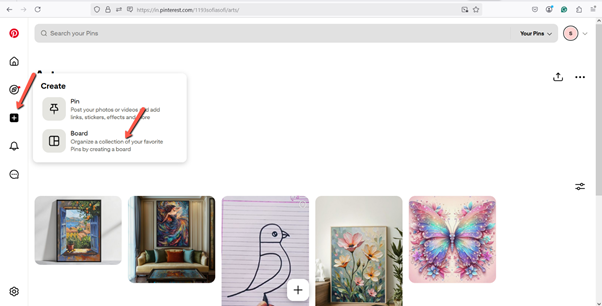
✅ Create at least one Board in your Pinterest account (this is required to post)
Step 1: Log in to Social Blazer
1. Open your browser and log in to your Social Blazer account.
2. Go to the Dashboard.
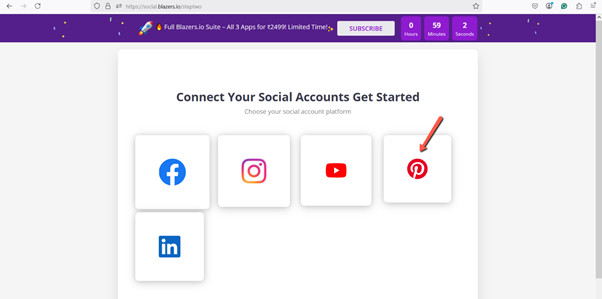
Step 2: Select Pinterest
1. From the list of social media platforms, click on Pinterest.
2. This will start the connection process.
Step 3: Log in to Pinterest
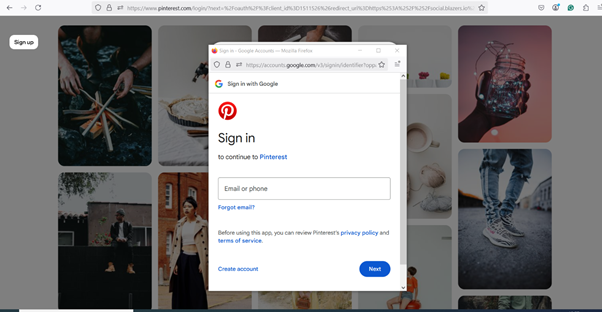
1. You will be redirected to the Pinterest login page.
2. Enter your Pinterest email/username and password.
3. Click Log In.
Step 4: Grant Permissions
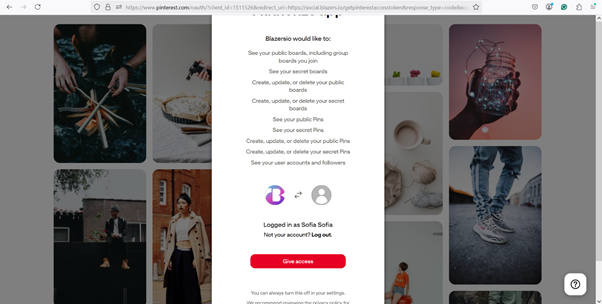
1. Pinterest will ask you to allow access.
2. Click Allow / Grant Access.
🔐 This permission allows Social Blazer to:
· Create and publish pins
· Manage posts
· Access your boards
Step 5: Select Your Pinterest Board
1. Choose the Pinterest Board where you want to publish posts.
2. Confirm your selection and continue.
Step 6: Connection Successful
1. Once connected, you will see a confirmation message.
2. Your Pinterest account is now linked to Social Blazer.
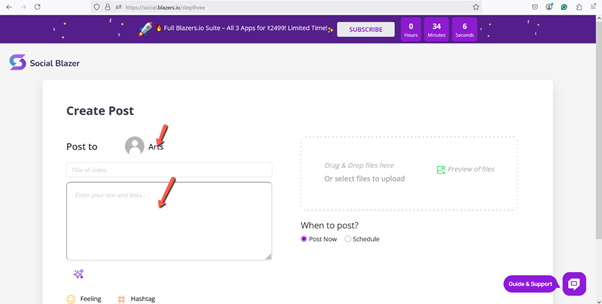
Step 7: Start Posting
1. You will be redirected to the posting page.
2. You can now:
o Create and publish pins
o Manage Pinterest posts
o Schedule content
✅ Final Note
You can manage all your Pinterest activity from one place using Social Blazer—no need to switch between platforms.